
Priorities
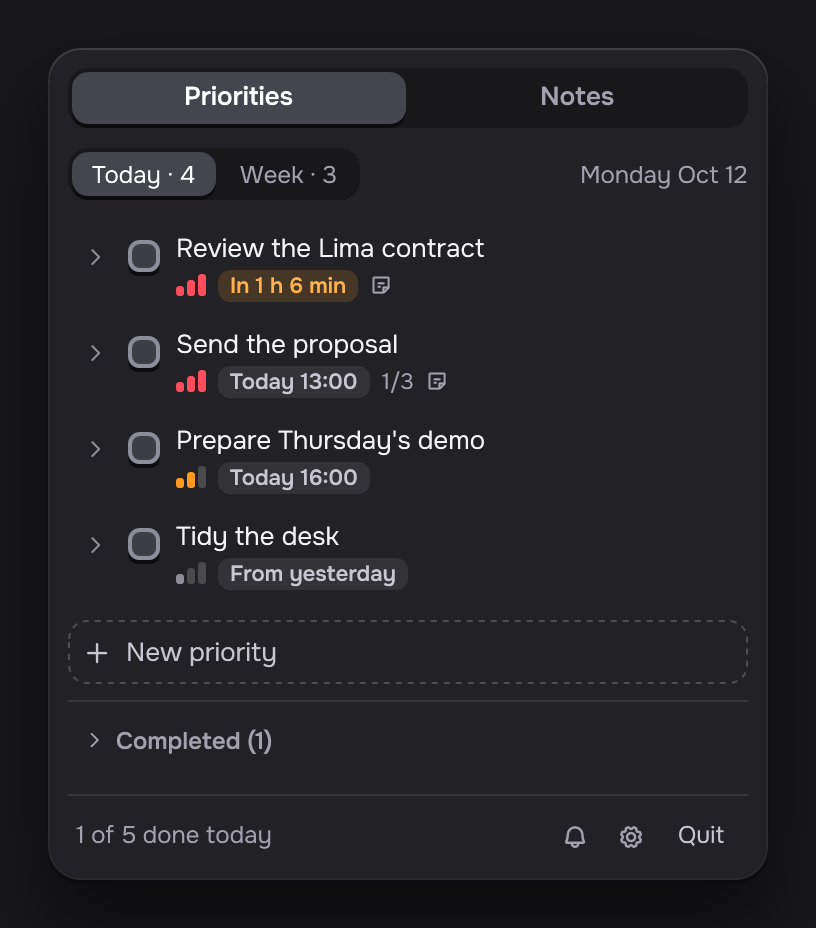
A priority is something you want to get done. The Priorities tab holds two lists, Today and Week. The most important ones show first.
Today and Week
Click Today or Week to switch lists. Keep in Today what you do today and in Week what can wait a few days.
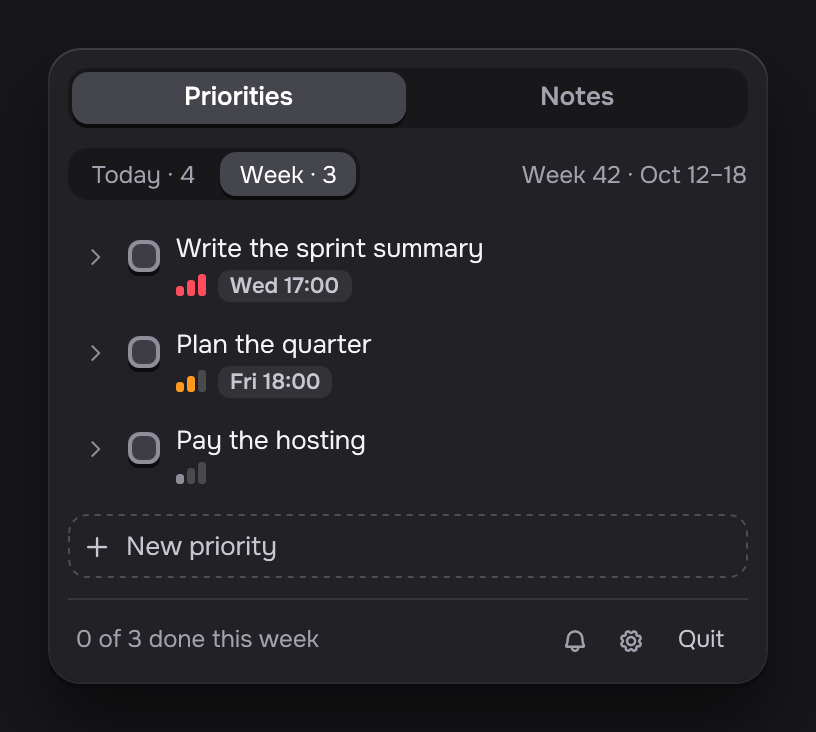
A priority you do not finish stays in Today the next day, with the chip From yesterday.
Add a priority
Click New priority and type a title. Choose a level, High, Medium or Low. Set a due time if it has one. Then press Enter or click Add.
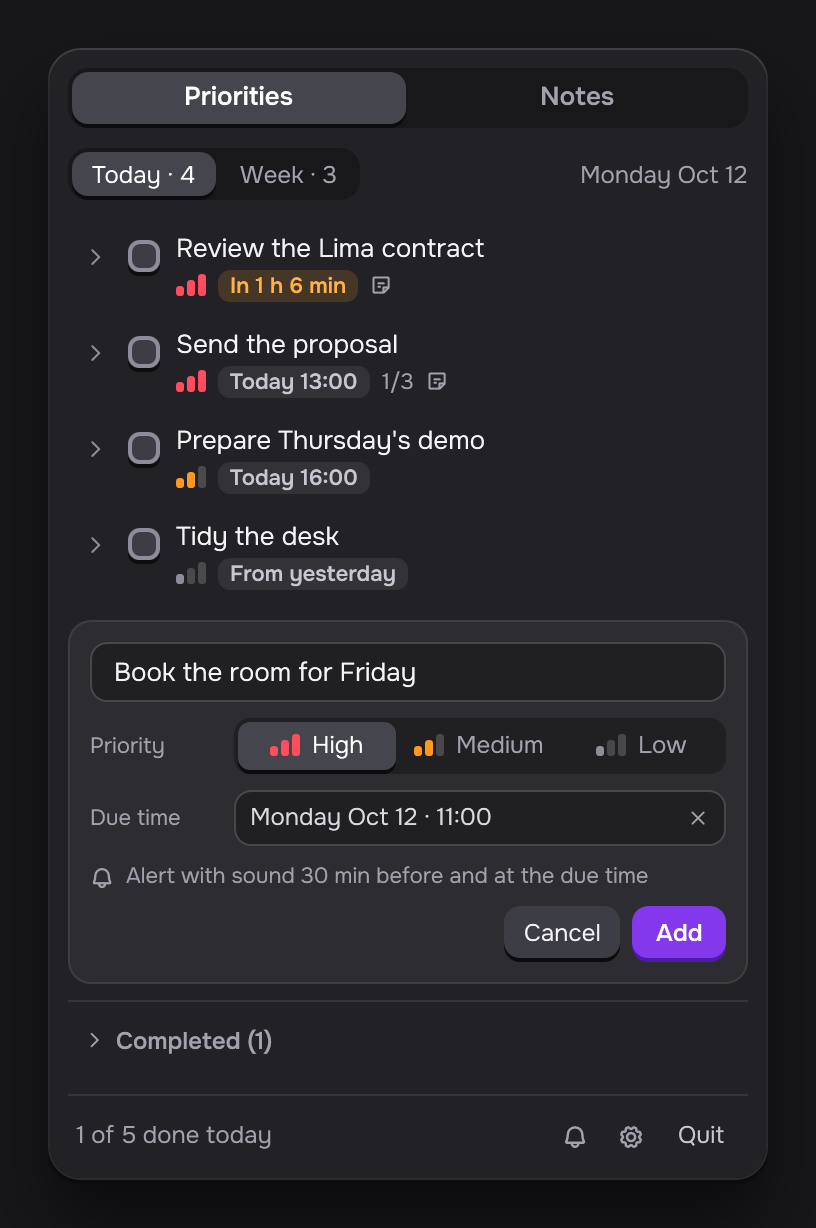
The list puts high priorities first, then the ones due soonest. The due time chip turns orange when less than 2 hours are left, for example In 36 min, and red when it is Overdue.
Mark it done
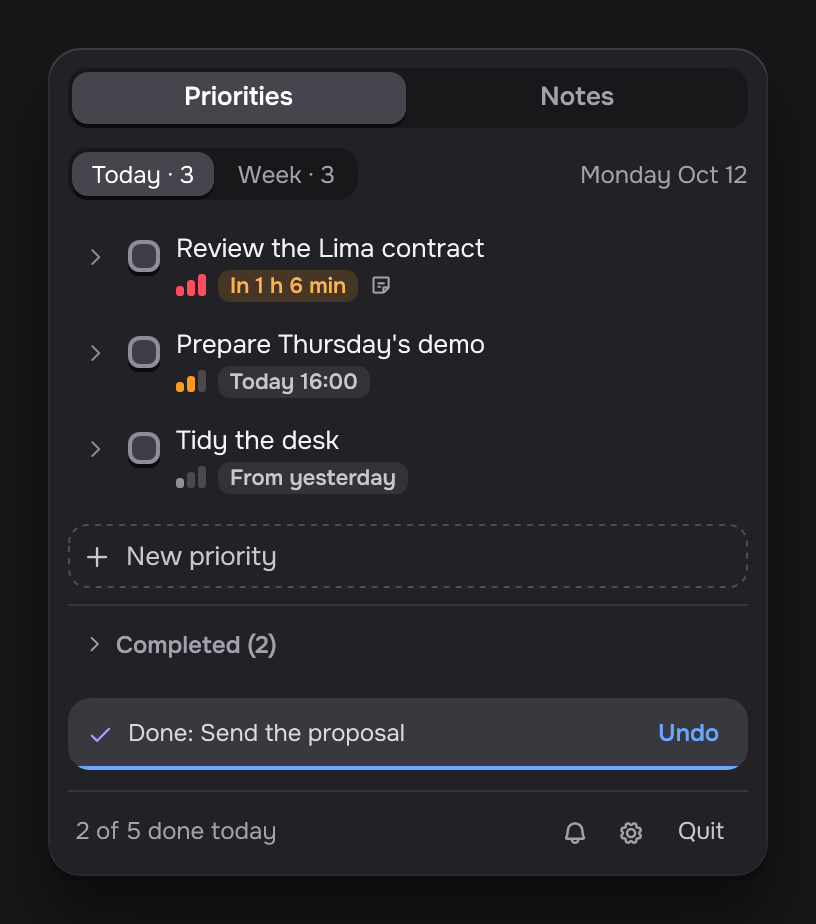
Only the checkbox marks a priority done, and it asks first. Click Done to confirm.
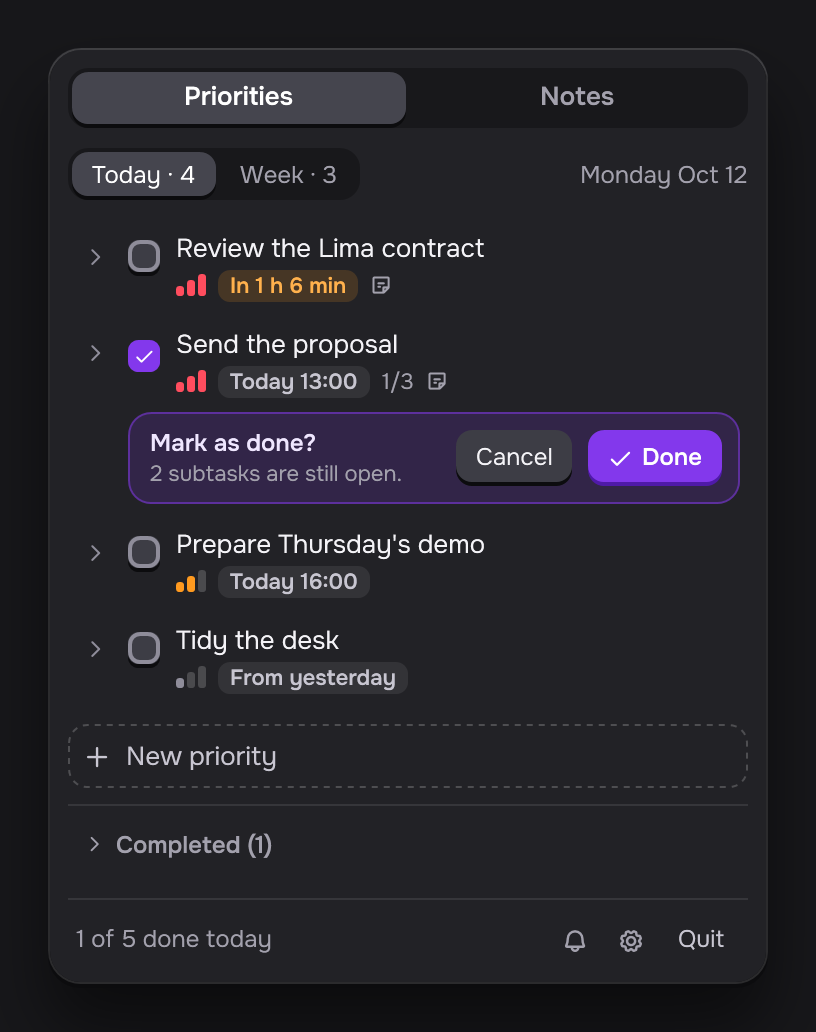
Changed your mind? Click Undo in the next 5 seconds.
Completed and History
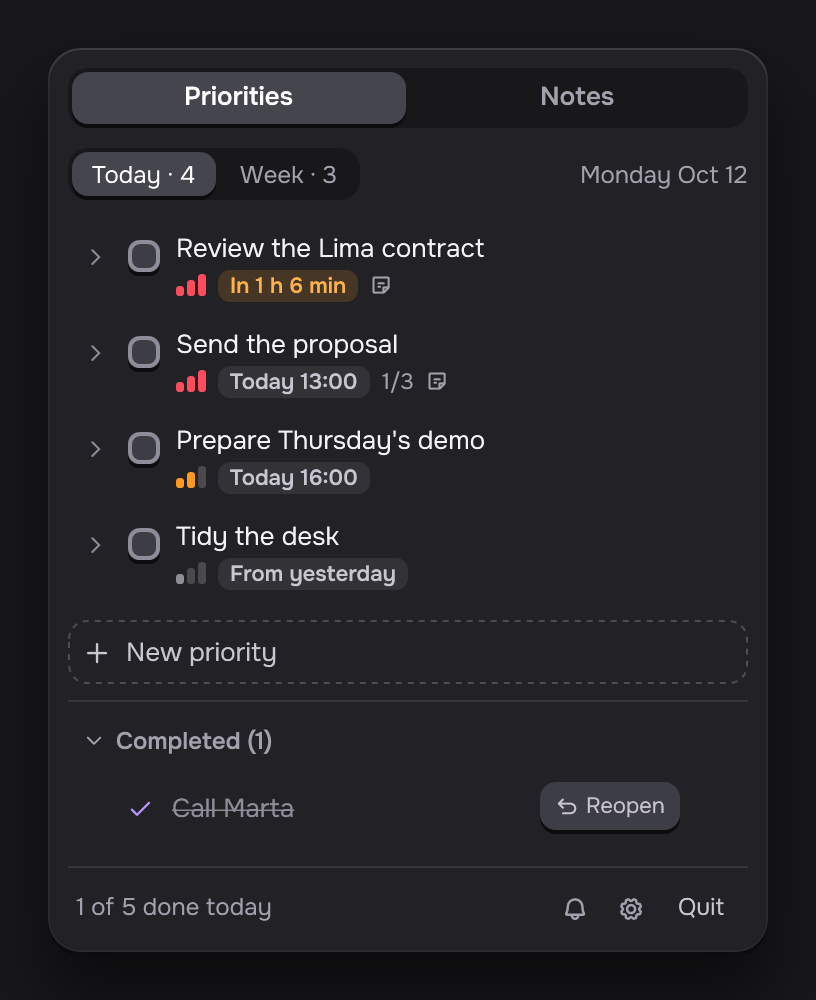
Completed shows what you finished in the last 24 hours. Click Reopen to put one back in the list. Older ones move to History.
Details, subtasks and a note
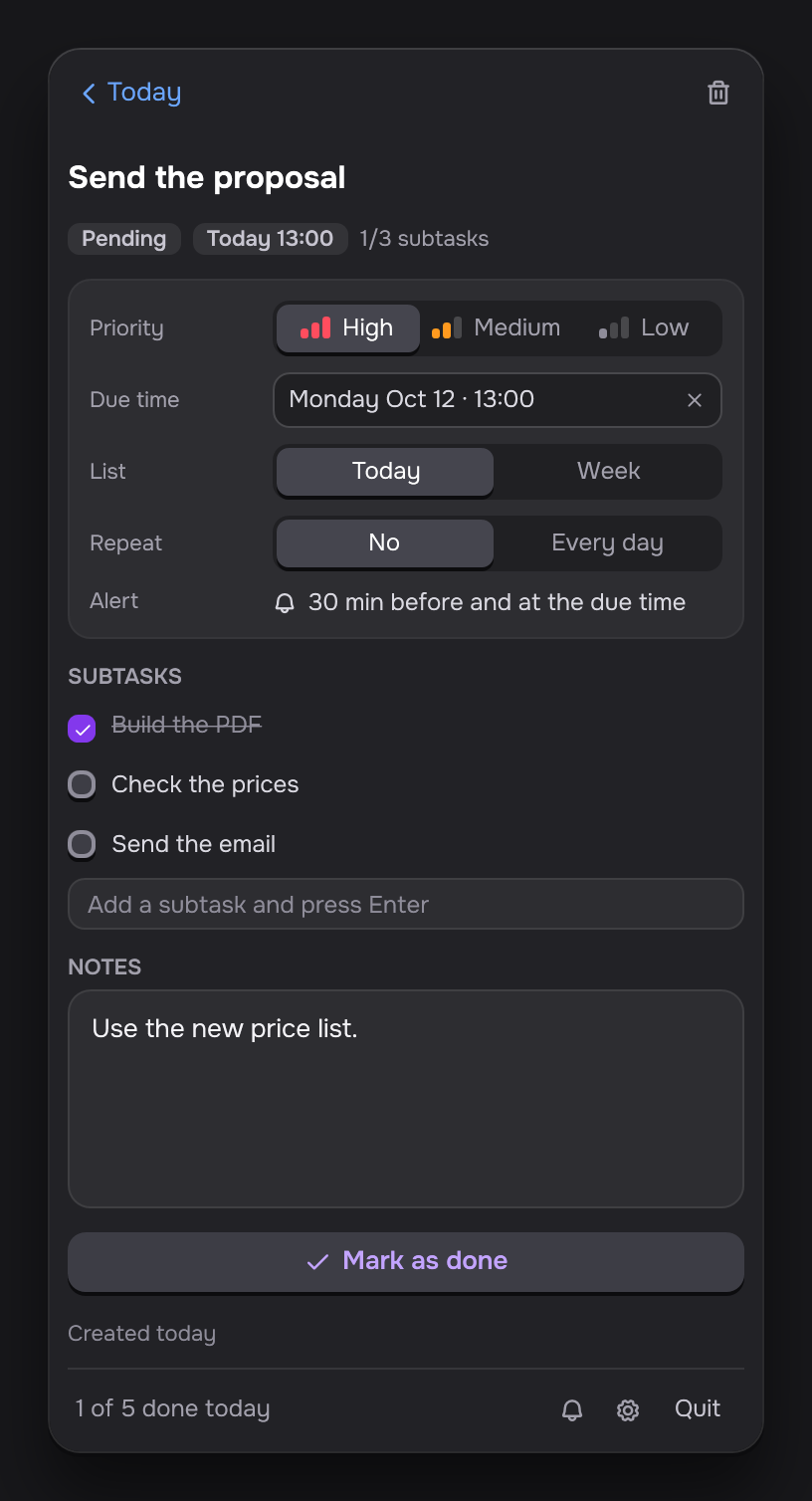
Click the title of a priority to open its details. Here you change its level, due time and list, break it into subtasks, and write a note.
Repeat every day
In the details, set Repeat to Every day. When you mark the priority done, a fresh copy shows in Today the next day.
Limit of 5 in Today
Turn on Maximum 5 open priorities in Today in Settings. With 5 open in Today, you cannot add or move another one there until you finish one.